

Burning 360 Games with Xbox Backup Creator - Easy & Simple
What is Xbox Backup Creator (XBC)?
Right to begin with let me just recap the basic facts, burning a game can be done easily...and fortunately there are more than one application which can help us in burning the file. The most common are:
1.Xbox Backup Creator
2.CloneCD (not DVD!)
3.ImgBurn
Out of the three Xbox Backup Creator has got to be the best, filled with many helpful features! Unlike CloneCD it can check if a Xbox 360 game is Stealth or not, it can also inject Stealth files if the game is not Stealth Apart from this there are many more features, but you get the point, XBC outnumbers ClonceCD feature-wise!
Now ImgBurn...well lets say it doesn’t put the fun into burning a 360 game, it’s not exactly hard but you have to do a few steps in order for the file to run successfully which can be tedious after a while. With Xbox Backup Creator you have complete ease...not one drip of sweat will form whilst the burning process (garunteed!) So that is why I am producing a fine tutorial on burning a Xbox 360 game with XBC, enjoy...
Requirements:
- Xbox Backup Creator (Obviously) You have don’t have it
- A Dual Layer CD, Verbatim is helpful
- A Dual Layer Burner, I suggest buying a Pioneer,Sony,Samsung and Lite-on.
- Small sufficient amount of knowledge
__________________________________________________ __________________________________________________
 Download the latest version of Xbox Backup Creator here.This download is a zip archive and so you can use the built in zip decompressor in windows or another archiving program to exract the files.
  Run "Xbox Backup Creator v2.3.exe" if you want to fully install the program on your computer. Run "Xbox Backup Creator.exe" if you only want to run the program there and then (doesnt install it).
 Start the program.
 Pick your drive in the drop down box and click "Write".
 Insert an empty dual layer disc now into the selected drive (Verbatim DVD+R DL is highly recommended) especially for Samsung and Hitachi drives.
 Select your write speed. I usually write my disks as slow as 2x to prevent any issues with bad burns (back in 2006). It is up to you wether you want to risk speed against quality. With some (if not most) burners it doesn't make any different - I just haven't got the guts to try. That and the point that my Verbatim DVD+R DL media is 2.4x maximum.
Now you can burn games with 4x to 6x speed too on Melody Dual Layer it works great on Benq and Liteon drives.
 Click "Start". This button only becomes available when a DVD+R DL is recognized by Xbox Backup Creator in the selected drive.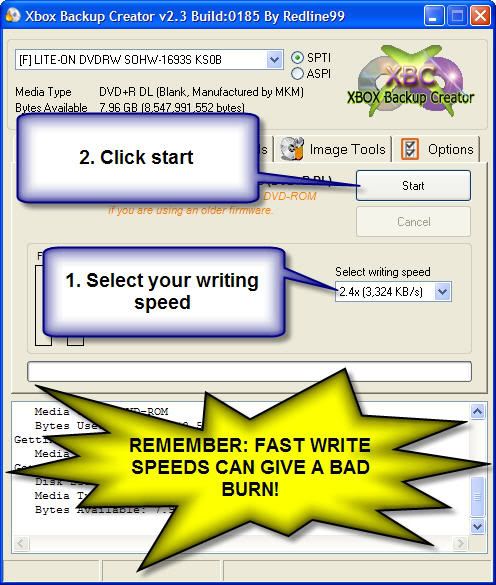
 Select your .dvd file and click open.
 Wait until the burn process is finished and pop the disk in the 360 when its completely done!
Once again everything is labelled but lets recap. After you select the .dvd file, burning does not happen immediately...so please, please do not click cancel if you feel that it is taking awhile to begin burning....
The second point in burn speed, now you may set it at x2.4 or x4 but the true fact is, it will probably not burn at the exact speed. If you have any programs running in the background please note this:
Many programs in the background = Faster Speed than what you chose - Not exactly good since Disc may not play properly in 360
Few Programs = Slower or about the same Speed as you chose - Perfect, you will be guaranteed excellent results
Complete!
Once the burn process is finished (takes up to an hour or more) You should see message say Write Completed (or something along those lines). Now as soon you see that message click Ok and then eject your DVD from your Drive. Then...well there's only one thing to do...PLAY!!!
I hope you enjoyed this Tutorial and found it easy, any problems, you know who to call...and no, it's not Ghost Busters.
HOW TO BURN XBOX360 GAMES USING CLONECD
First download clone cd because it is very simple to burn with clone cd.
SlySoft CloneCD 5.2.8.1http://www.slysoft.com/en/clonecd.html
After downloading 360 game u will recieve two files like IMAGE.000 AND IMAGE .DVD, it is not necessary that every game has same name like IMAGE it can be like BACKUP.000 with BACKUP.DVD, the file size of IMAGE.000 is around 7gb and IMAGE.DVD is only 1kb.
Just burn .DVD file like on this tutorial and remember the LAYER will be 1913760.
Burning your Xbox 360 Game Backup

This is Clone CD when it’s open. Clone CD is a very compact program and has a very nice interface, consisting of 4 options to do so many things.
Clone CD icons explained.

Read to image file: - This is used to rip what’s on the disc to an image file, such as an .iso or .cue file.

Write image to disk: - This is used to write an image you already have to a disc. This is the option we want to use to burn our 360 games!

Copy CD: - Make a 1:1 copy of a disc you already have. (A 1:1 copy is an exact copy of the disc without compressing the files at all).

Erase CD: - Used to erase a re-writable (RW) disc.

The next step is to click on the Write image to disk icon.

You now want to browse to your folder containing your .iso and select the .DVD file.... It will open the .DVD.
 | Click this bar to view the full image. |


It is important that the layer break is set to this exact number as if it is burned differently you will have errors when you put your backup in the Xbox 360. Now just click next to start on the next.
| Click this bar to view the full image. |
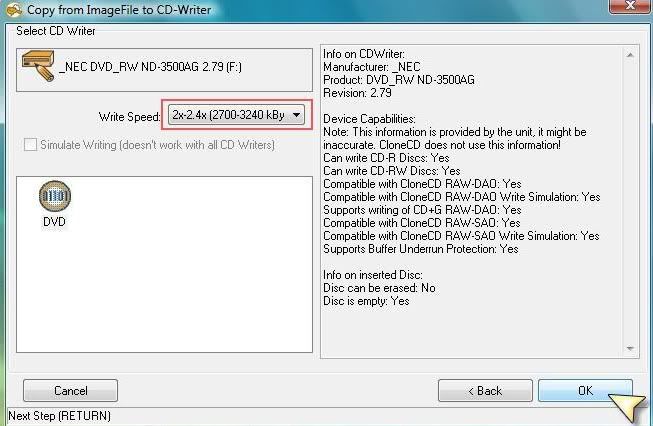
You will then need to select the write speed of the burn I would recommend burning your Xbox 360 Backups at the 2x-2.4x selection to ensure quality playback. Than click "ok"
Your Xbox 360 Backup will now begin to burn and when it is done just click ok and remove the disc from the drive and play on a 360.


Complete!
ImgBurn Backup Burning Tutorial
1. Download ImgBurn
2. Launch the program and using the menu at the top go to: "Tools -> Settings"
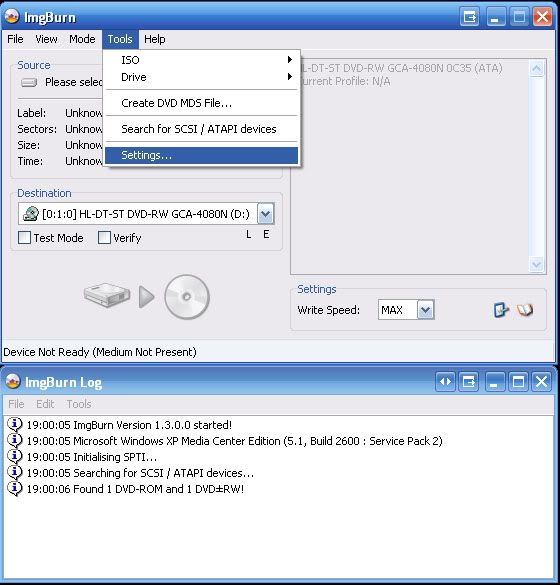
3.Go to the "Write" tab and under the "Options" section on the right hand side select the radio button labeled "User Specified" under the "Layer Break (For DL Media)" section. Now in the textbox next to the words "Sectors in L0:" enter the value: "1913760" (without quotes of course).

4.[You can start here in the future!] Open your IMAGE.000 or whatever you labeled your backup using the "Browse" button. Next to the text "Files of type" use the drop down menu and select "All Files (*.*)". You should now be able to select your backup image file.

If you recieve the following error

Then you have most likely made an incorrect image. Try remaking the SS.bin and reapplying that as it may cause problems. IF YOU ARE SURE that you have correctly made your backup, you can use this tool to get ImgBurn to detect your ISO. For an explanation of what the tool does and how to use it view the Readme.txt inside the zip.
5.Set your burn speed to 2.4x and click the large burn button. Sit back and wait for the backup to burn.

OPTIONAL: You can go back to "Tools -> Settings" and then back to the "Write" tab and set the "Layer Break" option back to "Calculate Optimal" if you are going to be using ImgBurn to burn other dual layer images that are NOT Xbox 360 backups. If you are only gonna be burning dual layer Xbox 360 backups, you can leave it to the setting before and resume at step #4 the next time you wanna burn a backup.
@
Tagged @ TRAINING TUTORIALS

 0 Comments
![[MediaFire] NFS / Need For Speed Shift](http://techno.diwarta.com/wp-content/uploads/2013/05/Logo-Games.jpg )


